 DayPilot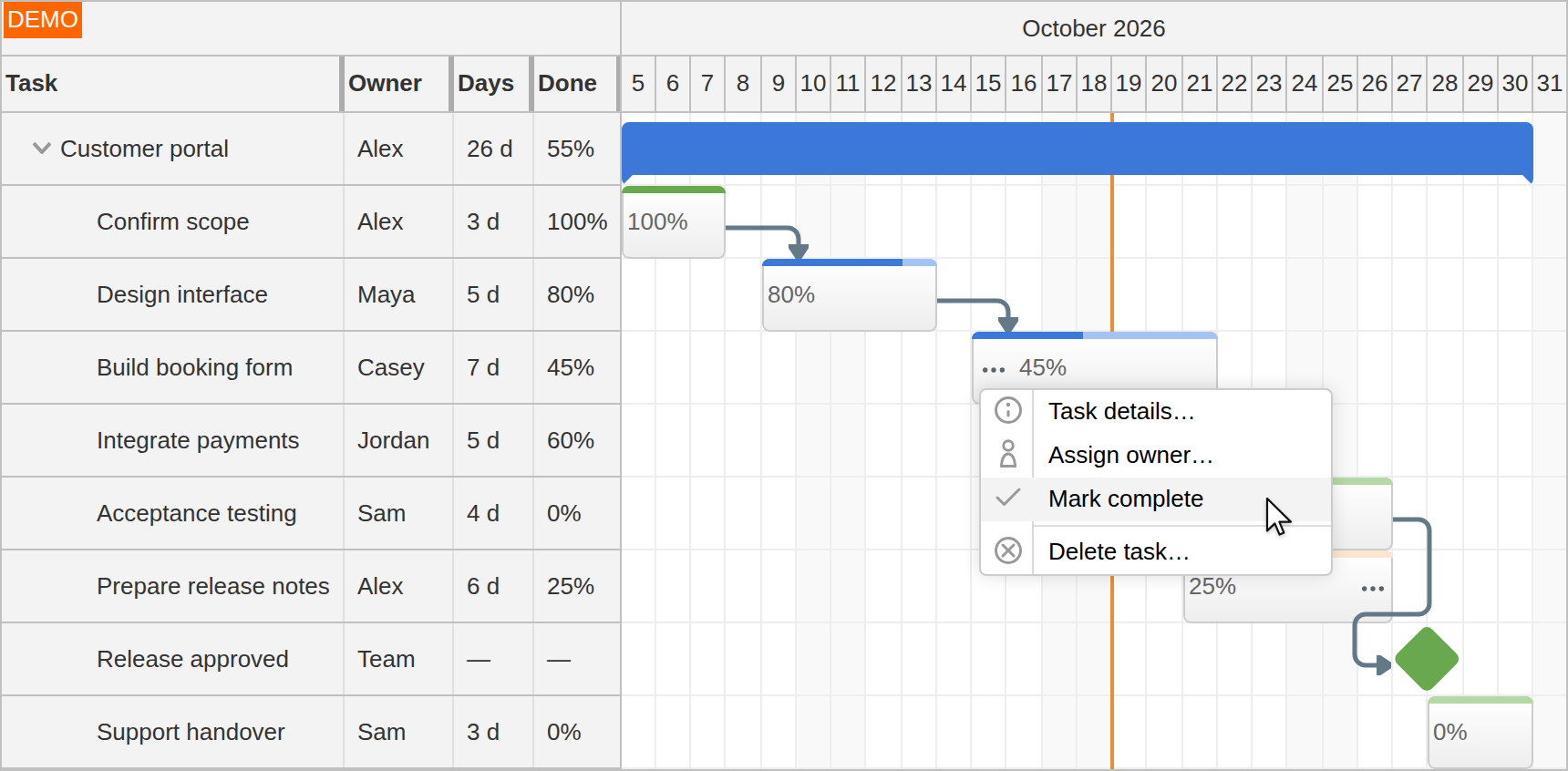
The JavaScript Gantt chart displays project tasks on a timeline, with one task per row. Organize work into groups, connect dependent tasks, track completion and mark delivery dates with milestones. A task table keeps owners and other planning data beside the schedule.
Explore the interactive Gantt demo or download DayPilot Pro to try it in your application. The Gantt component is included in DayPilot Pro for JavaScript, with JavaScript, TypeScript, Angular, React and Vue integrations.
Project Hierarchies, Milestones and Progress
Keep the project structure and delivery dates visible.
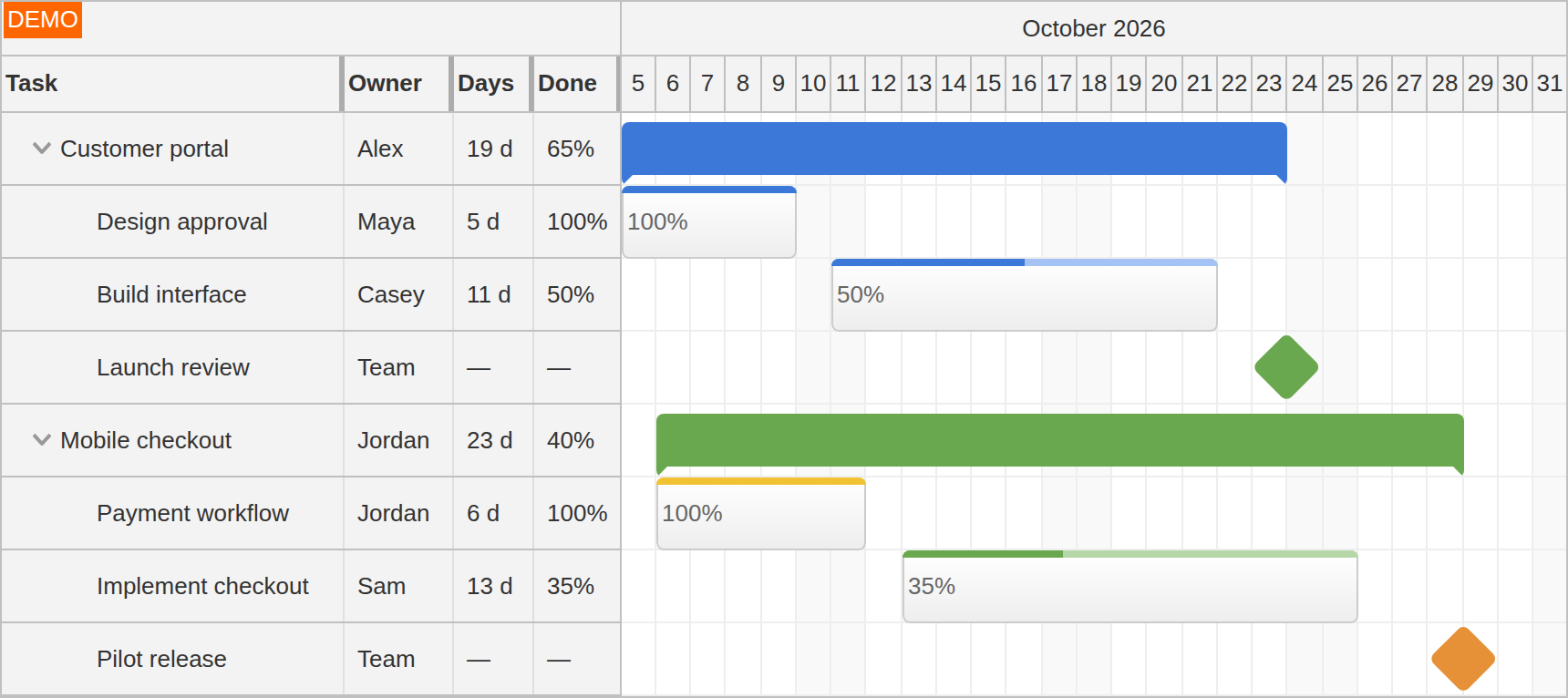
Arrange tasks into nested groups that users can expand or collapse. In Auto mode, a group's start and end dates span its children; Manual mode lets you supply the group's dates independently. A milestone marks a single delivery or approval time.
Supply completion percentages from your project data to display progress bars and percentage labels for tasks and groups. Group completion can reflect your own weighting or reporting rules.
The project-management feature page introduces these building blocks. The group-mode documentation explains date calculation, and the milestone guide covers point-in-time tasks.
Task Dependencies
Show how work connects across the project.
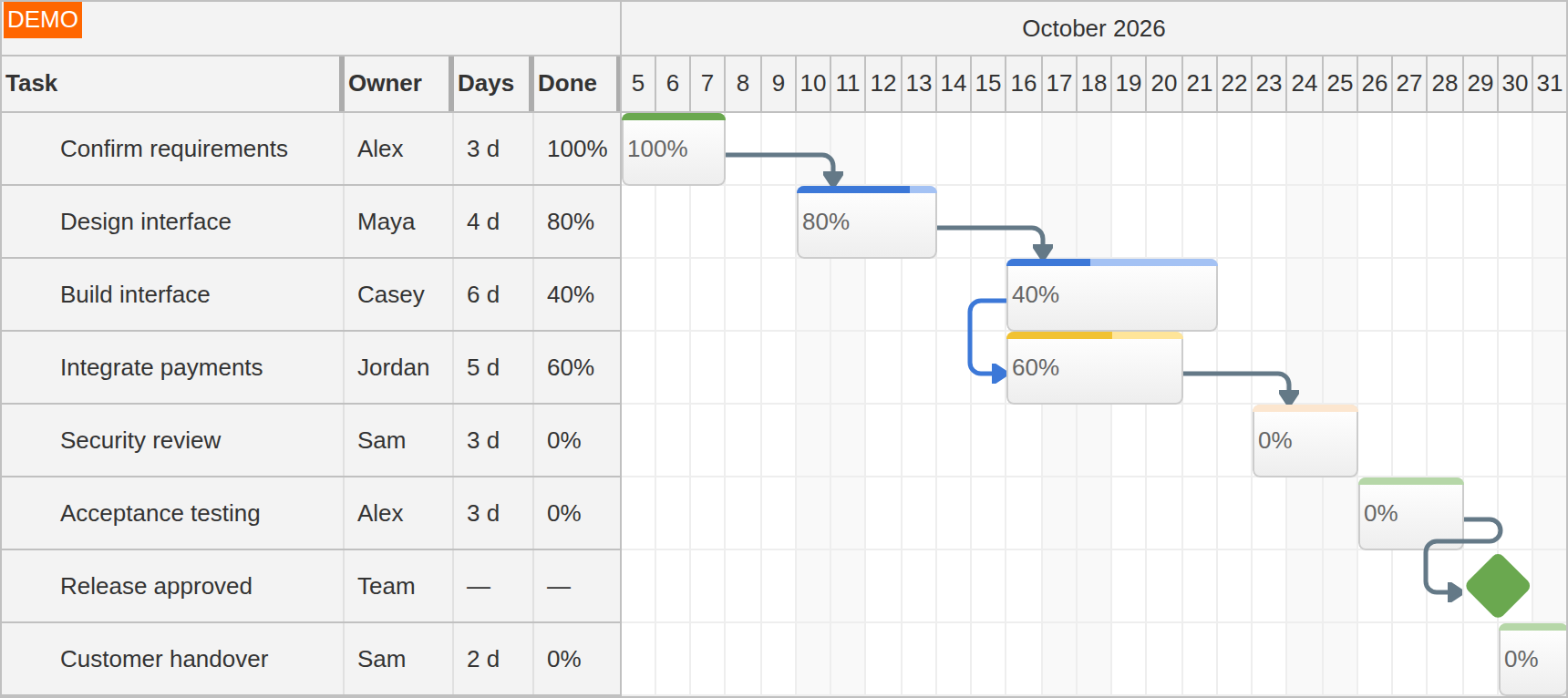
Connect tasks using Finish-to-Start, Start-to-Start, Finish-to-Finish or Start-to-Finish relationships. Users can create links by dragging between task endpoints, inspect a connection and open its context menu.
Choose curved or right-angled links and configure line width, arrows and pointer hit areas. The screenshots use clear right-angled paths with rounded corners. Links identify the relationships; your application applies scheduling rules when dependent dates need to change.
The Gantt dependency-link documentation covers link data, creation and interaction handling.
Drag and Drop Editing
Change dates and project structure directly in the chart.
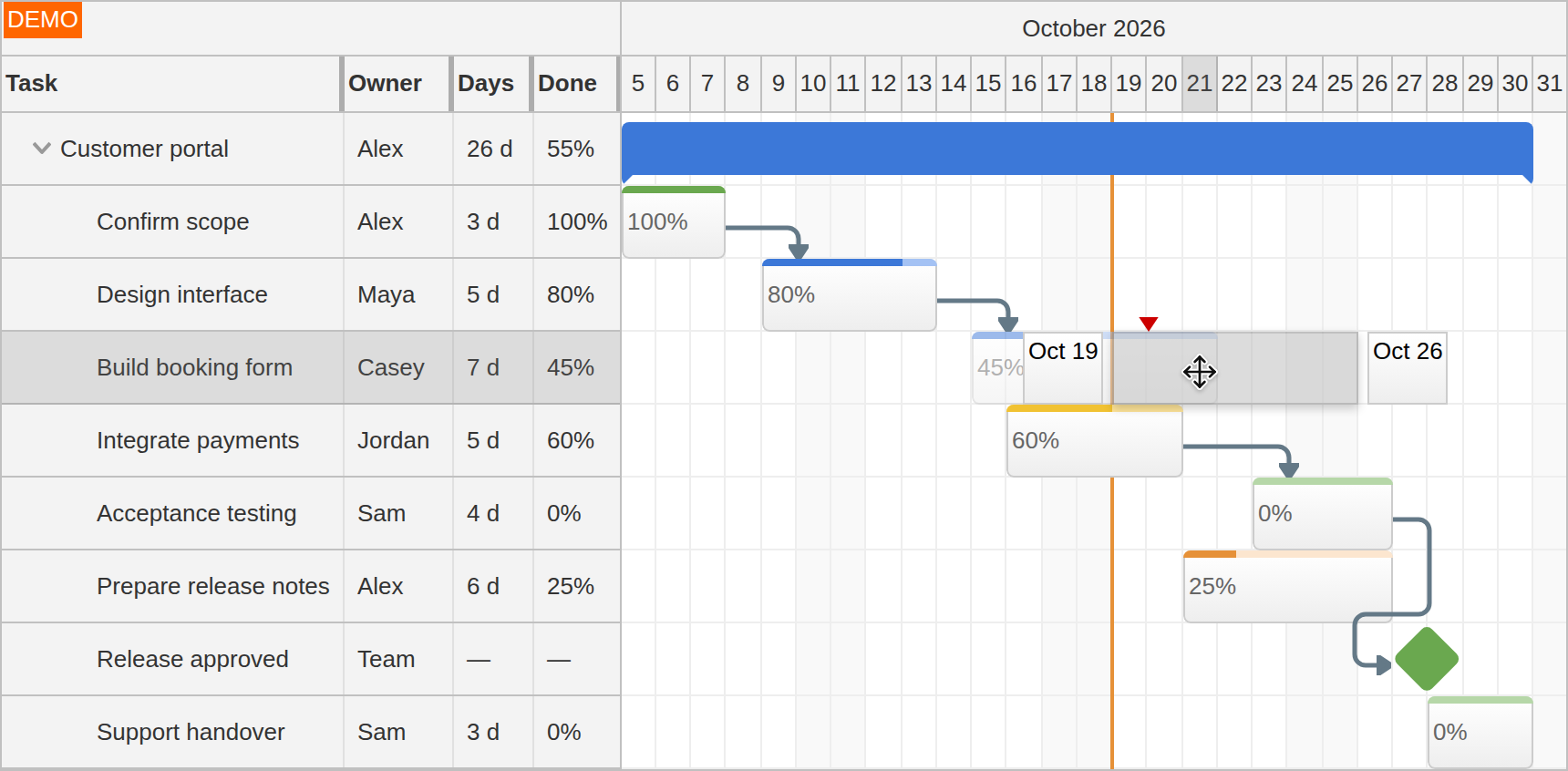
Move a task along the timeline or resize its bar to change its duration. Move an Auto-mode group together with its children, or select several tasks with Ctrl+click and move the selection as a unit. Row dragging reorders work or moves tasks into another group.
During a move, application handlers can check the proposed dates, change the feedback and allow or reject the position. Before and after callbacks connect edits to your persistence and validation logic.
Explore the Gantt drag-and-drop feature page, or configure group movement and moving multiple selected tasks for larger edits.
Task Data and Application Actions
Put useful task information beside the timeline and details within reach.
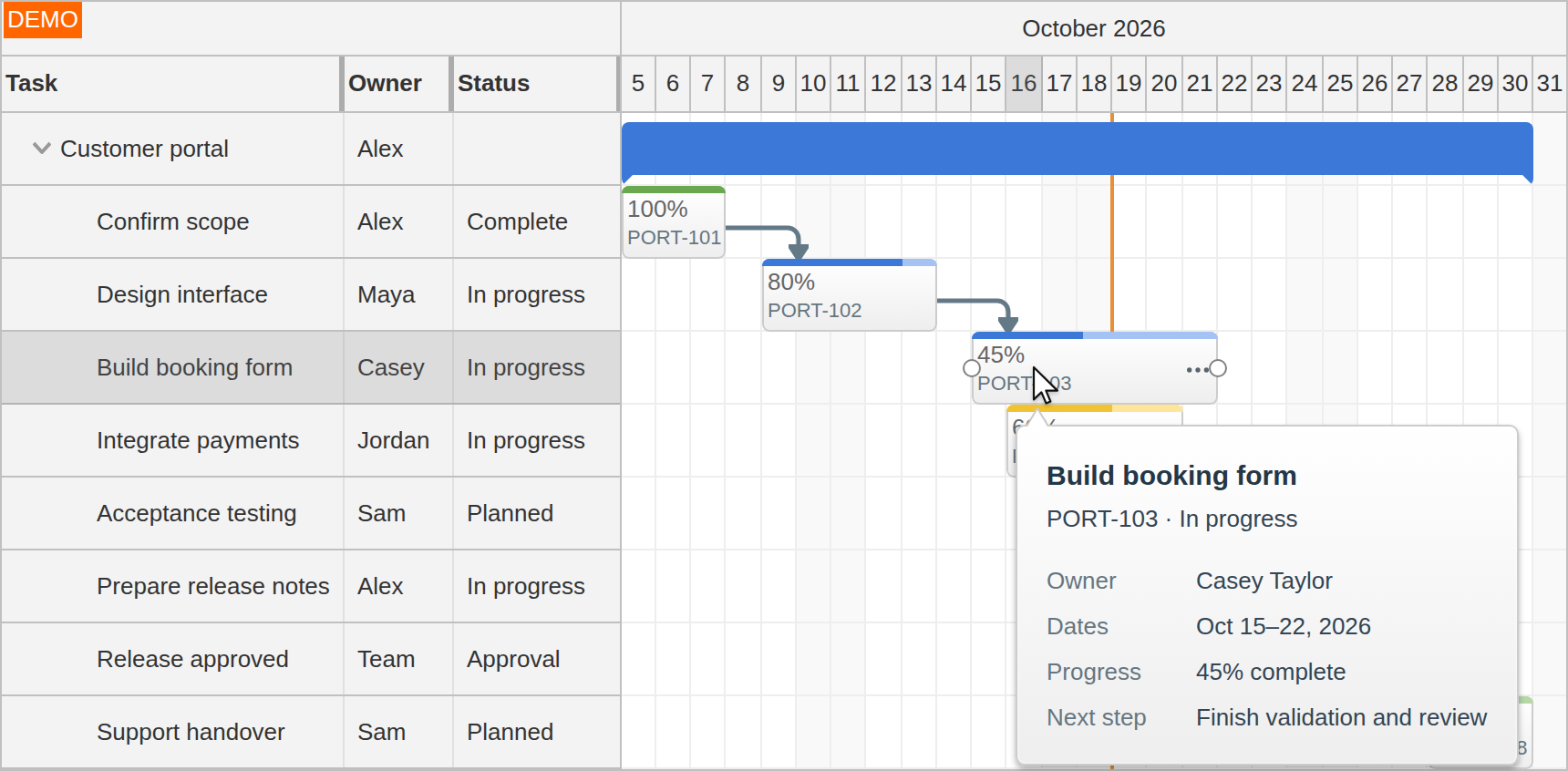
Add task-table columns for owners, dates, duration, status or calculated values. Customize row headers and task boxes with application content, colors and action icons. Inline row editing and application dialogs can handle different kinds of changes.
A task detail bubble shows information on demand, including asynchronously loaded content. Separate context menus for tasks, rows and links can offer actions such as assigning an owner, editing details or deleting a dependency.
Flexible Project Timelines
Use the time resolution that fits the work.
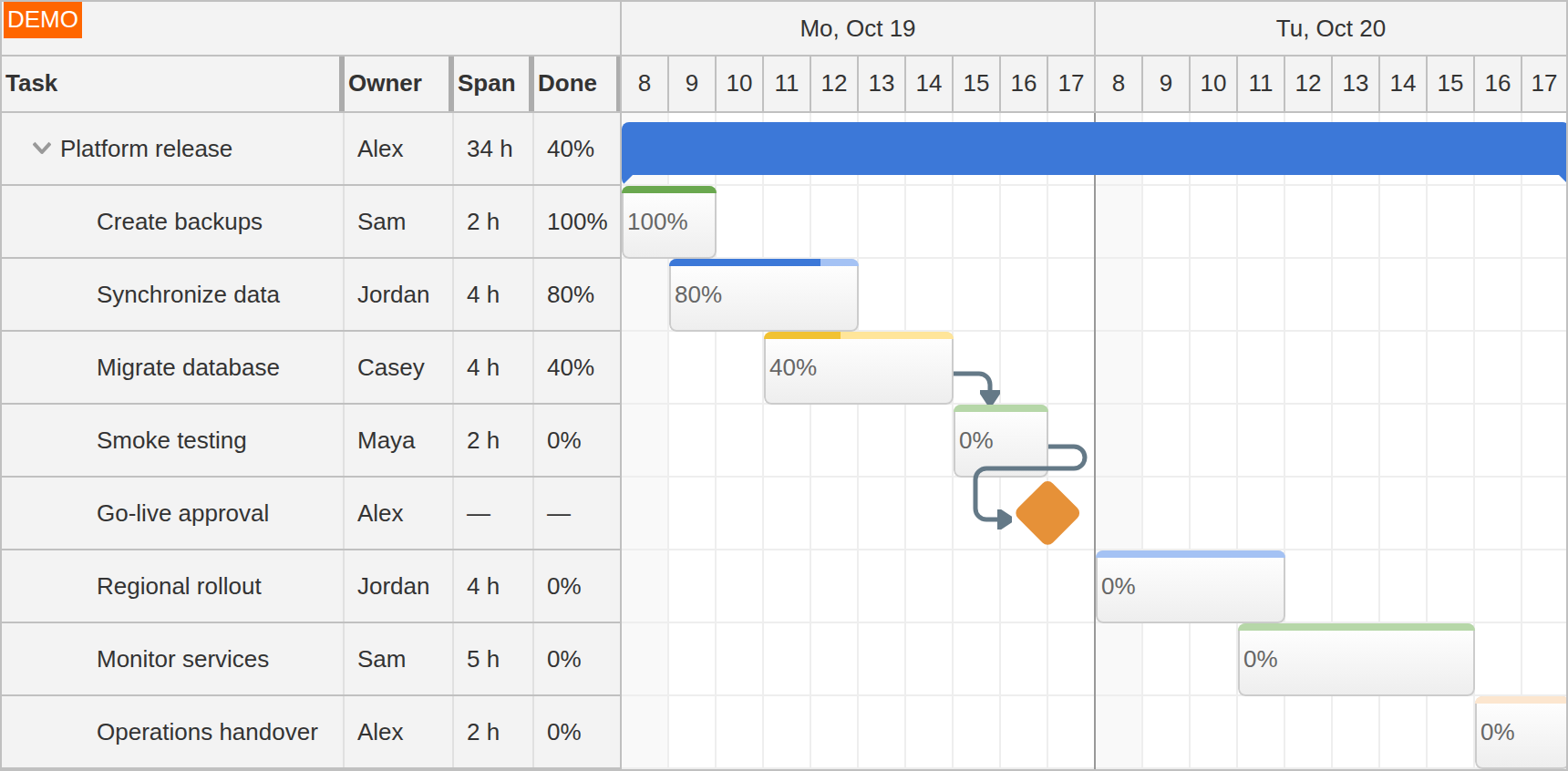
Use minute or hour cells for a deployment plan, daily cells for project delivery, or week, month and year scales for longer horizons. Stacked time headers keep the date context visible.
A custom timeline can omit weekends or overnight gaps, or combine cells of different durations and widths. The example shows two working days on an hourly grid with the overnight period omitted. The time-scale documentation covers the standard resolutions.
Large Task Trees and Long Timelines
Render the part of the plan that users are working with.
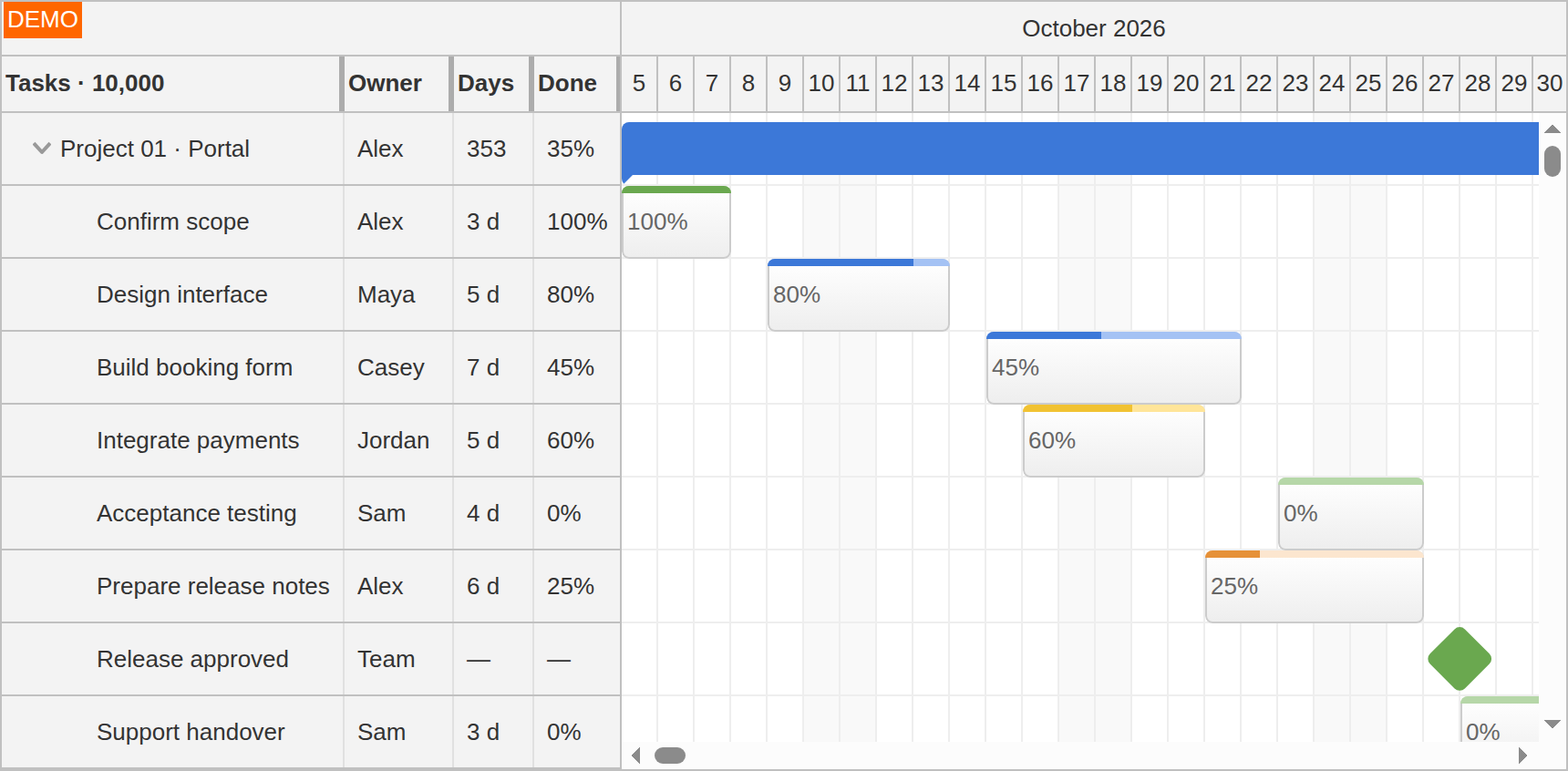
Progressive task and row rendering reduce the number of elements needed for a large loaded project. As users scroll, the Gantt renders visible work and nearby rows. Progressive time-header rendering also limits header work on long timelines.
The screenshot uses 10,000 loaded rows and a three-year timeline. Try the large-data example with your project's task distribution and custom rendering. The progressive time-header guide describes the current viewport behavior. Loading project data remains part of the application.
JavaScript, TypeScript and Framework Integration
Use the same task and dependency model in your application stack.
Define tasks with IDs, text, dates and completion values; add children for groups and reference task IDs from links. This JavaScript example creates a small project on a fixed, matching date range:
<script src="daypilot-all.min.js"></script>
<div id="dp"></div>
<script>
const gantt = new DayPilot.Gantt("dp", {
  startDate: "2026-10-05",
  days: 31,
  taskHeight: 40,
  tasks: [{
    id: "portal", text: "Customer portal", complete: 50,
    children: [
      { id: "design", text: "Design review", complete: 100,
        start: "2026-10-05", end: "2026-10-09" },
      { id: "build", text: "Build interface", complete: 30,
        start: "2026-10-12", end: "2026-10-20" },
      { id: "release", text: "Release approved",
        start: "2026-10-23", type: "Milestone" }
    ]
  }],
  links: [{ from: "design", to: "build", type: "FinishToStart" }]
});
gantt.init();
</script>
The JavaScript/PHP Gantt tutorial connects the chart to stored task data. Follow the Angular Gantt tutorial, React Gantt tutorial or Vue Gantt tutorial for framework-specific projects.
Angular templates and Vue slots support custom task and row-header content. Pro framework packages are available through the official direct package download URLs. Load task and link data from your backend and save changes from the relevant event callbacks; the Gantt documentation covers the client-side integration options.
Try It: Gantt UI Builder
Configure a live chart and download a starter project.
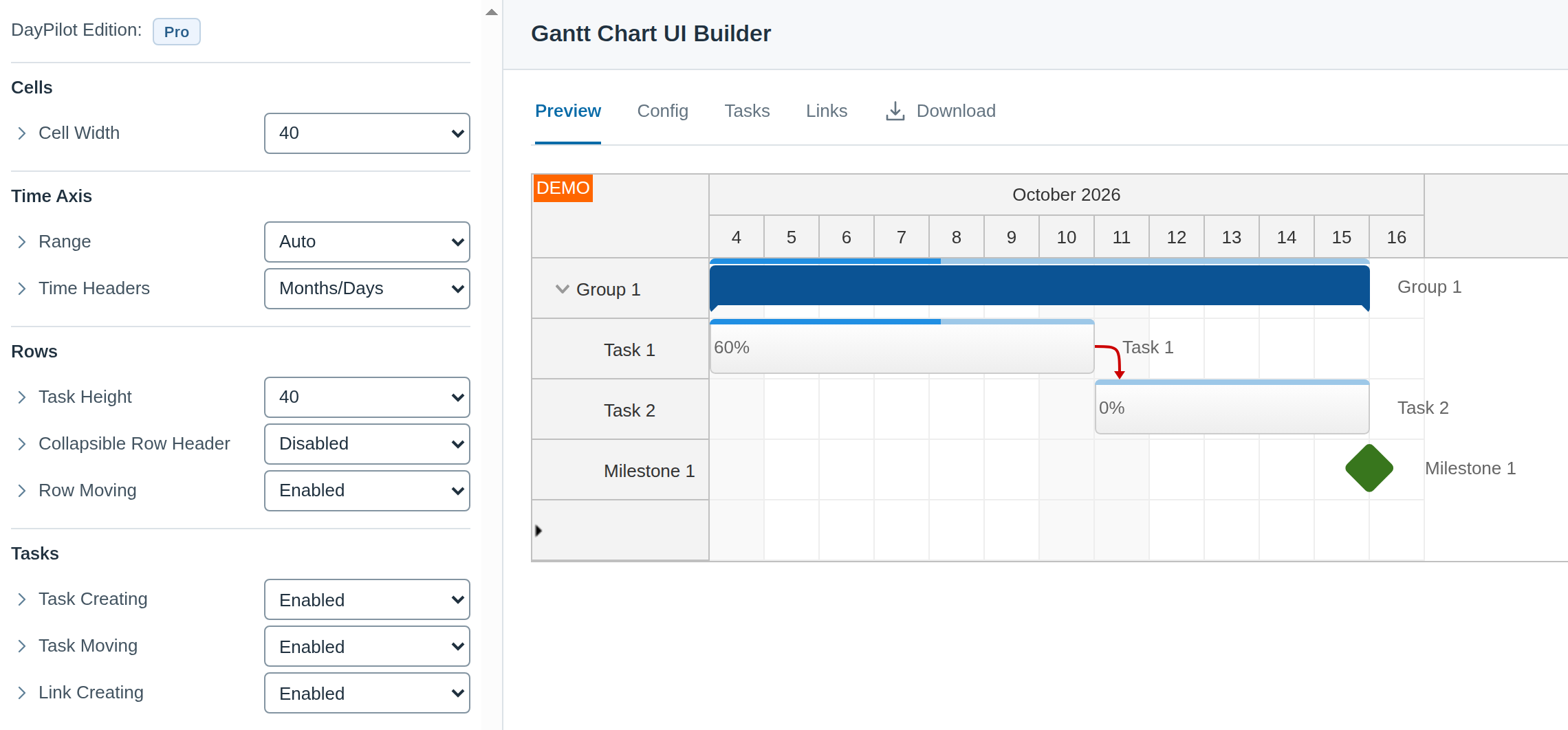
The Gantt UI Builder lets you set up the timeline, task appearance and event handling against a working preview. Edit sample tasks and links, then choose a JavaScript, TypeScript, Angular, React, Next.js or Vue project to download.
Mobile and Touch Support
Keep project editing available on a tablet.
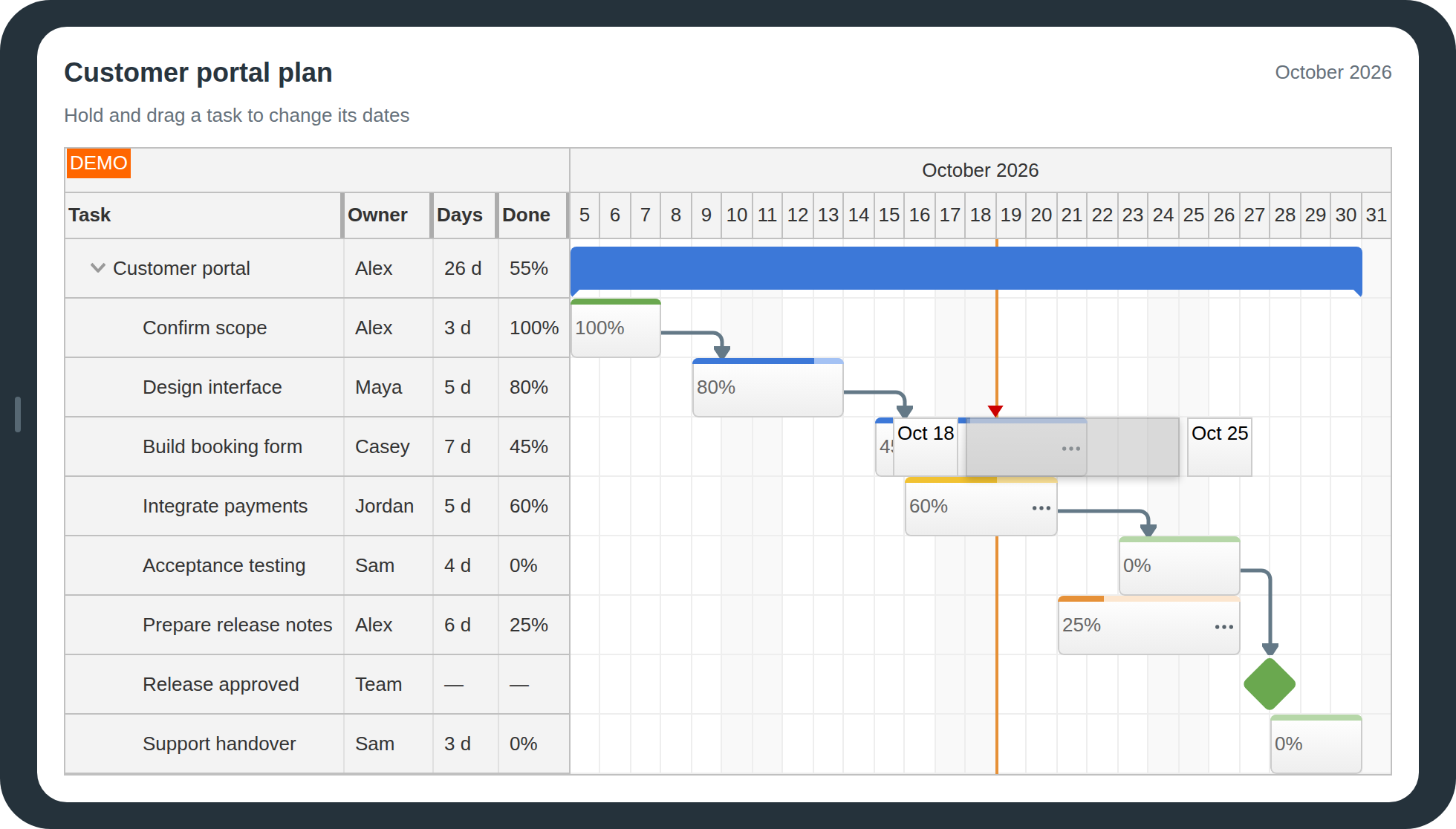
The Gantt supports touch interaction for moving and resizing tasks, with scrolling through the plan as users work. Application action areas can make task controls visible without depending on hover. The landscape example shows a real held task move.
Check the current browser compatibility matrix when choosing the browsers and devices for your application.
Themes and Localization
Match the application while keeping the project readable.
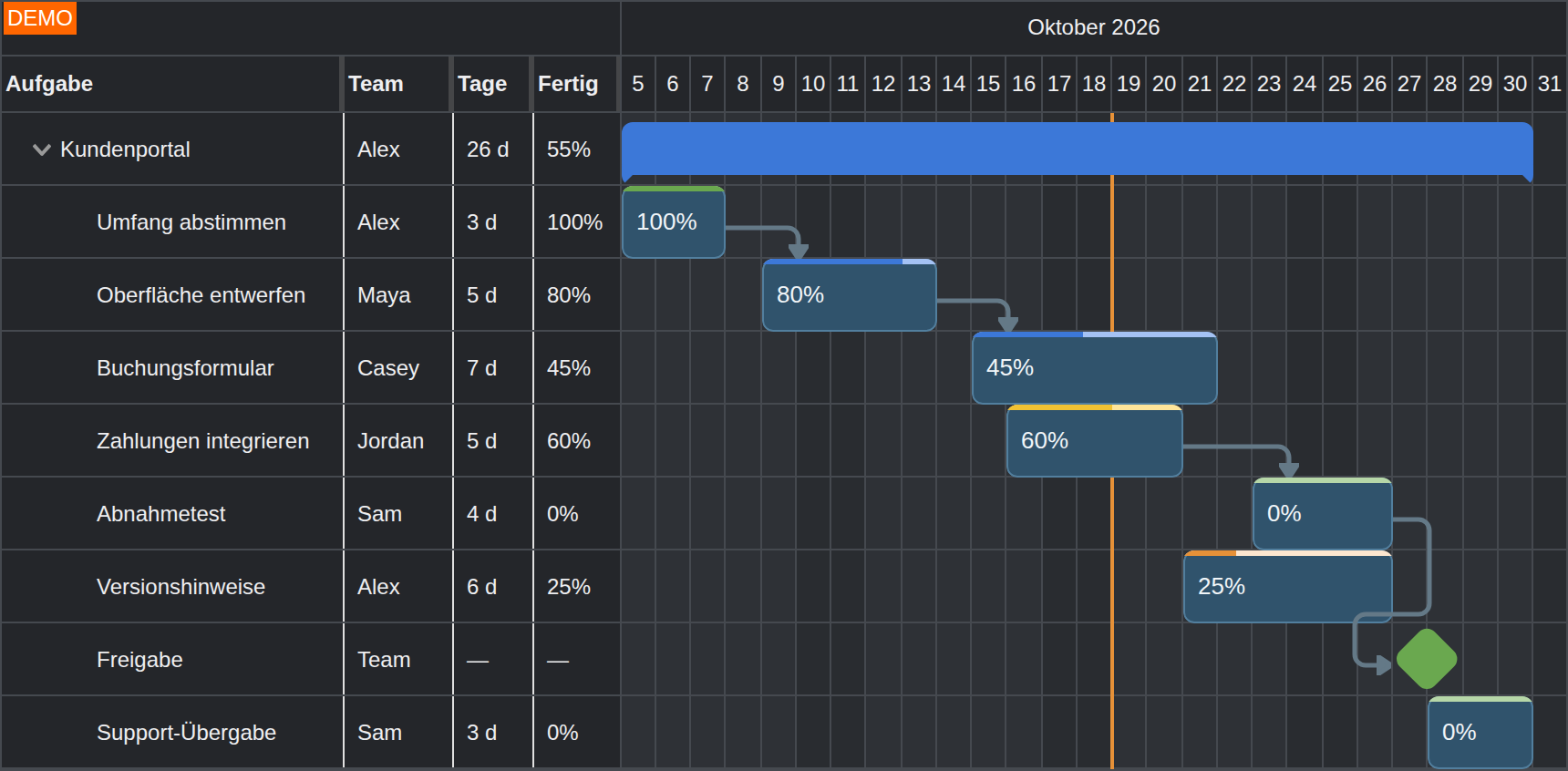
Use the default appearance or a CSS theme, including the current Gantt dark theme. The Theme Designer provides a visual starting point for custom colors, borders, fonts and other styling.
Locale settings control date formatting and time-header labels. Custom row and task text comes from your application. The screenshot combines the native dark theme with German project labels and month formatting.
Export: Images, PDF and Excel
Share the project plan outside the application.
Export the chart as SVG, PNG or JPEG for reports, printing and other pages. The Gantt image-export guide covers output options and customization. An exported image can also be embedded in an application-generated PDF.
For spreadsheet handoff, export an XLSX file using ExcelJS. The Gantt Excel export demo shows the required library reference and task-box output configuration. Image exports and spreadsheets serve different reporting needs, so test the chosen format against the plan information you need to share.