 DayPilot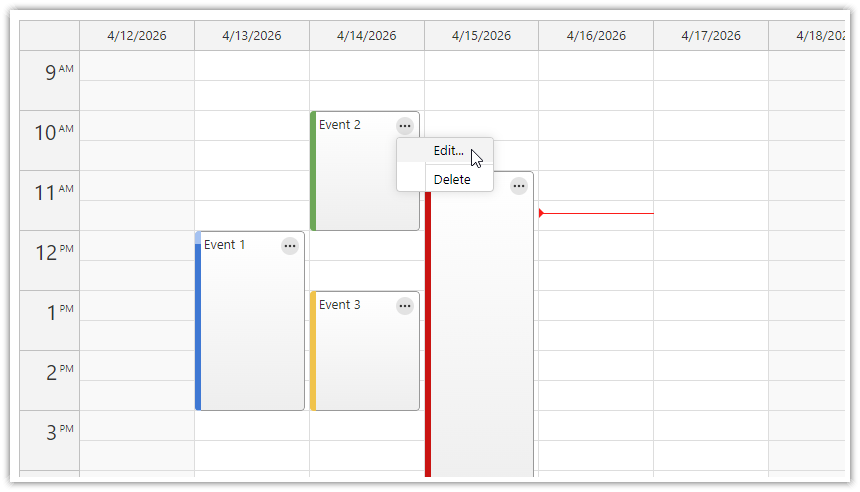
The classic day-and-week calendar, configurable into resource columns, custom day sets, and yearly grids.
The DayPilot JavaScript Calendar is an interactive scheduling UI component for appointment booking, room and equipment reservation, technician dispatch, operating-room and clinic scheduling, and workforce planning. Time runs on the vertical axis; days or resources sit on the horizontal axis.
The calendar component is available for JavaScript, TypeScript, Angular, React, and Vue.
The Calendar ships in two editions. DayPilot Lite is open-source under the Apache 2.0 license, free for personal and commercial use. DayPilot Pro is the commercial edition. To compare the editions, see the feature matrix.
A working calendar is a few lines:
// init
const calendar = new DayPilot.Calendar("calendar", {
  viewType: "Week"
});
calendar.init();

// load and display data
const events = [
  { id: 1, text: "Kickoff Meeting", start: "2026-06-08T10:00:00", end: "2026-06-08T11:30:00" }
];
calendar.update({events});
Daily / Weekly Scheduling
Day, Work Week, Week, and custom multi-day views with hour-level resolution.
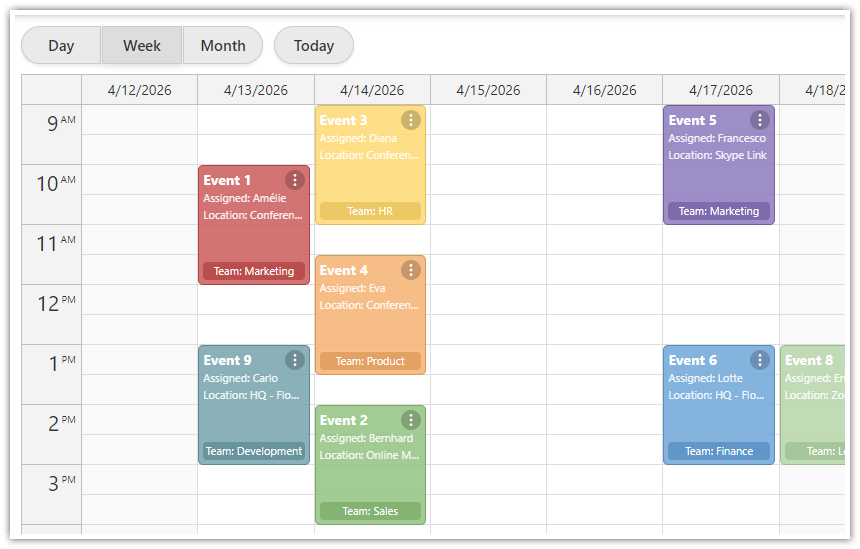
Calendar mode displays day-by-day and week-by-week schedules at hour and minute resolution. The built-in views cover a single day, a five-day work week, a full week with the first day determined by the active locale, and any custom number of consecutive days.
The main Calendar demo lets you try the interactive features of the weekly calendar.
Resource Calendar
Schedule people, rooms, and equipment as columns instead of dates.
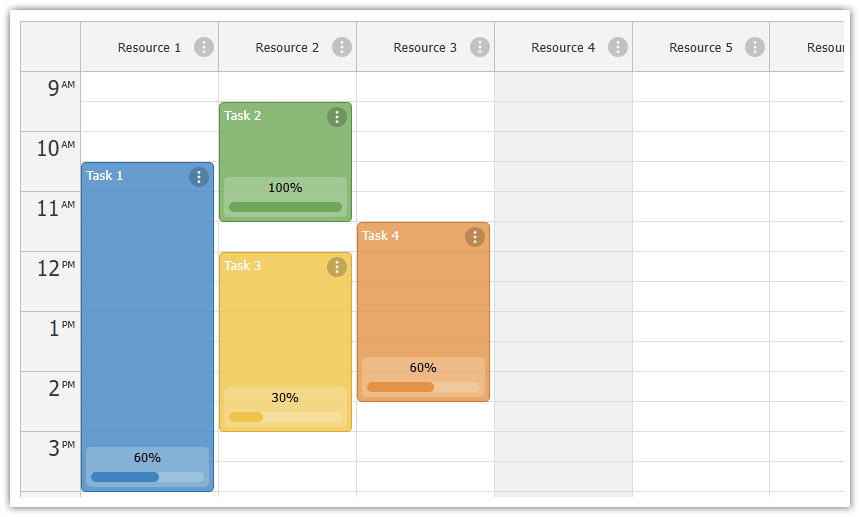
Resource Calendar mode replaces date columns with people, rooms, machines, or any other bookable entity. The time axis stays vertical; each column represents a resource, and events are booked against the resource instead of a date.
The column model goes well beyond a flat list. The calendar can group resources under multi-level headers (operating theatres by surgical department, technicians by regional crew), assigns per-column widths, and lets users move and resize columns by dragging. An all-day queue holds unscheduled tasks until they are dragged onto the schedule, and progressive rendering keeps resource sets that don't fit on screen responsive. These layouts carry shift planning, technician dispatch, multi-location booking, and equipment reservation scenarios.
See resources as columns in action, and the JavaScript resource calendar page for the layout details.
Framework and Package Support
JavaScript, TypeScript + Angular, React, Next.js, and Vue.
The Calendar runs in plain JavaScript and TypeScript projects and ships with native components for Angular, React, and Vue — with bindings for configuration and events, imperative access to the full API, and framework-side rendering inside events (including JSX in React and templates in Vue).
DayPilot Pro packages are published through a dedicated npm registry (npm.daypilot.org) with per-framework distributions — daypilot-pro-javascript, daypilot-pro-angular, daypilot-pro-react, daypilot-pro-vue. The open-source DayPilot Lite packages are on public npm under the @daypilot/daypilot-lite-* namespace. Alongside npm, the open-source download bundles Calendar, Scheduler, Month, and Navigator into a single production file with TypeScript definitions and sample themes — useful for script-tag integration or environments where npm isn't an option.
The Calendar UI Builder generates a configured starter project for any of these stacks.
Drag and Drop Workflows
Everything drags: events, columns, queue items, even files from the desktop.
Built-in drag-and-drop interactions in the Calendar:
Create events by dragging across a time range.
Move events between time slots, days, or resource columns.
Resize events by dragging the top or bottom edge.
Reorder and resize resource columns by dragging them.
You can also:
Push existing events when dropping onto a busy slot.
Swap two events by dragging one onto the other.
Drag events between two calendars with synchronized handlers on both sides.
Drag from an external list (unscheduled events, task queues, equipment pools) onto the schedule.
Drag items from the desktop onto the calendar (files, OS-level content).
Drag items into existing events for assignment-style workflows, and drag items back out of events.
The drag itself is programmable. While the user drags, the application sees the proposed position in real time and can adjust it, redraw the drag shadow, and annotate it with labels that follow the cursor: the proposed start and end times, the new duration as the user resizes, a warning before an overbooked drop lands. A dispatcher dragging a work order from the unscheduled queue onto a technician's column sees the schedule react before the mouse is released, not after.
See the event moving documentation for the full handler set, and the tutorial on dragging all-day events to a specific time for an example of extending drag behavior past the defaults. The ASP.NET Core Workforce Scheduling sample puts the external-drag pattern to work: a queue of unscheduled orders, drag-and-drop allocation onto staff columns, and per-task checklists.
Scheduling Rules and Constraints
Refuse, adjust, or explain a move - before the mouse is released.
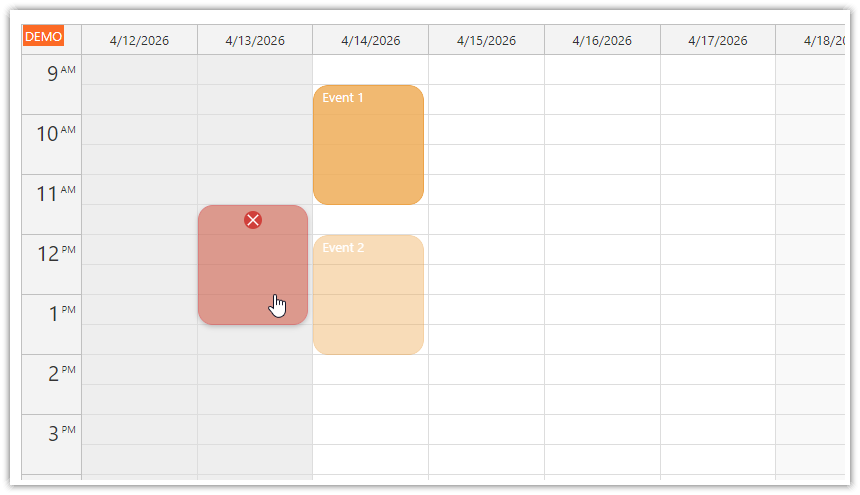
The Calendar's rule layer combines built-in constraints with programmable hooks for custom logic.
Built-in constraints:
Business hours: mark the working day; off-hours render with their own styling, or can be hidden from the grid entirely.
Disabled cells: block specific time slots from event creation.
Read-only mode: disable creation, move, and resize globally or per event.
Overlap control: block moves, resizes, and creation that would land on top of an existing event.
Snap to grid: events align to time-slot boundaries; the slot duration matches the application's scheduling resolution.
Per-event locks: pin individual events against moving, resizing, or clicking based on their data.
Beyond the built-in rules, custom logic plugs into the same drag-and-drop pipeline:
Real-time validation during dragging: the
onEventMovinghandler fires throughout the drag. The application decides whether the current target is allowed, can redraw the shadow, and can annotate it: highlight an overbooked resource in red, or show the new duration next to the cursor.Position adjustment during the drag: the same handler can nudge the proposed position before the user releases, supporting snap-to-custom-interval, snap-to-business-hour, or magnet-style alignment to neighboring events.
Before-commit validation: move, resize, and create operations fire a handler before the change is applied. The handler can run a server check for conflicts, request confirmation, or cancel the operation outright.
Data-driven locks: the per-event render hook can lock any event against moving, resizing, or clicking based on what it represents.
These mechanisms compose. The same hook stack that paints business hours can refuse an out-of-hours drop in real time. The same per-event render hook that draws a status icon can lock that event from moving. In real workflows:
A container terminal locks berth assignments within a cutoff before vessel arrival.
A manufacturing plant blocks double-booking of a production line across two work orders.
An airline requires a turnaround buffer between consecutive flights at the same gate.
See the blocking selected dates tutorial for a workflow that ties cell-level disablement to drag-and-drop enforcement.
Select, Copy, Filter, Undo
The big and small helpers that daily schedule work turns out to need.
Some capabilities don't show up in a demo with six events; they show up three months into production, when the schedule is full and someone has to work it. The Calendar ships them built in, because sooner or later every scheduling application needs them:
Multi-select: select events with click and Ctrl+click, highlight them via CSS, and operate on the whole selection; a selection API covers programmatic control.
Copy events: duplicate an event with Ctrl+drag instead of re-entering it.
Event filtering:
events.filter()applies an application-defined rule, so a 200-event day reduces to one crew, one status, or one search term in a keystroke.Column filtering: in Resources view, the same mechanism hides columns: show one team out of forty technicians.
Inline editing: a click on an event title becomes an in-place text editor, with the new value handed to the application to persist; quicker than a full dialog for a one-word fix.
Built-in delete: per-event delete handling without wiring custom controls.
Undo/redo: an undo layer composes on top of the event API; the calendar undo/redo tutorial builds it on the open-source edition.
See the event filtering documentation for the rule model.
Customization: Events, Cells, and Headers
Every visible surface is configurable through event hooks, with active areas as the extra customization layer.
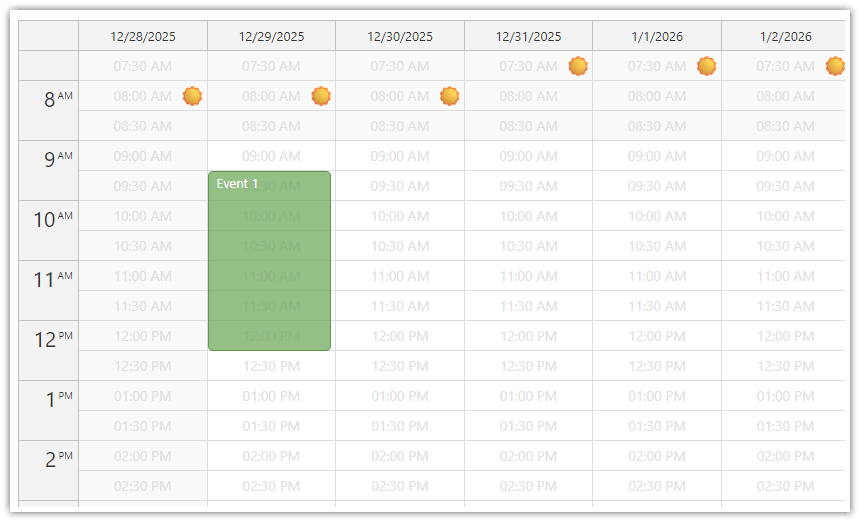
Every visible surface in the Calendar is customizable through pre-render hooks: events, cells, time headers, and column headers each have a hook that fires before rendering, with the data and current properties exposed for the application to modify.
You can customize:
Events: background, border, font, content HTML, duration bar, tooltip, hover detail, context menu, and per-event interaction locks.
Day cells, time-header cells, and column headers: color, content HTML, CSS class, business-hour status, holiday markers, multi-line layouts.
Resources-view headers: grouped multi-level structures with custom column widths and per-column rendering.
Selection rendering: the visual indicator while the user drags to create a new event.
You can use active areas to add visual elements to events or cells (anchored to any edge or corner):
Icon badges for status, priority, or category.
Avatars for assigned attendees.
In-event delete and edit buttons.
Custom drag handles in specific corners.
Color swatches for color-coded scheduling.
Counters and progress indicators.
Hover-only controls that appear when the user points at the event.
Touch-visible alternatives for tablet and phone interfaces.
Each active area renders content from a CSS icon class, an SVG symbol, or an image URL; handles its own click events; and can be shown always, on hover only, or with a touch-aware variant. Active areas also support built-in actions (drag-to-move, drag-to-resize, context-menu trigger, hover-detail trigger) without writing custom DOM handlers.
Framework-native customization paths exist for Angular, React, and Vue, so rendering can stay inside the framework's component model. See the active areas documentation for the positioning and visibility model, and the React Calendar JSX-in-events tutorial for an end-to-end example.
User Experience Helpers
Details on demand: hover detail, context menus, and ambient position cues.
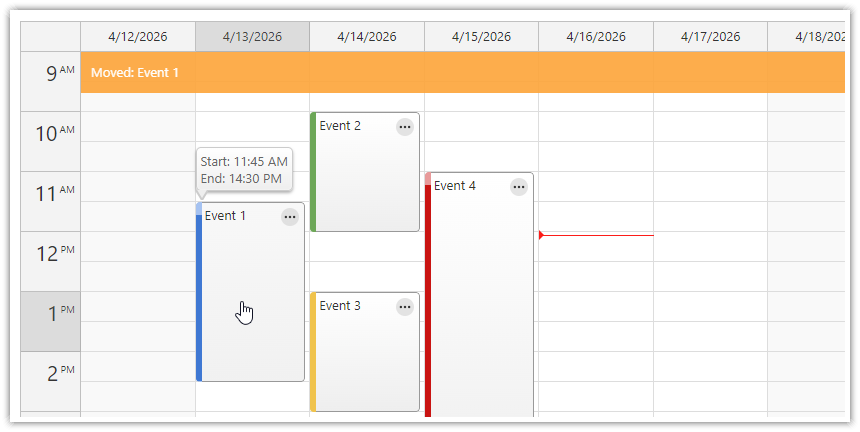
The event bubble shows event detail on hover, click, or right-click. It can be static HTML, or loaded asynchronously so detail living on the server is fetched only when someone actually looks at the event. The context menu opens on right-click on an event or an empty cell, with icons, per-item handlers, and submenus. This is a place for edit, duplicate, delete, status changes, or any other context-specific shortcut.
The rest is ambient. A crosshair highlights the row and column under the cursor (header-only or across the full schedule). The viewport scrolls automatically when a drag approaches its edge, in both directions. Scroll labels at the top and bottom of each column signal events outside the visible range. A line across the schedule marks the current time. And a built-in message bar shows inline notifications that auto-dismiss, pausing while the user hovers.
See the event bubble documentation for hover content and asynchronous loading.
Try It: Calendar UI Builder
Configure a live calendar and download a runnable project for your stack.
Set up views, business hours, drag-and-drop rules, and event handling against a live preview, then download the result as a ready-to-run project (JavaScript, TypeScript, Angular, React, Vue, or Next.js).
Scalability and Performance
Fixed-width columns, progressive rendering, and runtime zoom for dense and wide schedules.
The Calendar handles dense and wide schedules through several built-in performance options:
Fixed-width columns: keep each resource or day at a readable size and let the calendar add a horizontal scrollbar when the total width exceeds the viewport. Works in Resources view and in multi-day layouts alike.
Minimum column width: clamps responsive layouts so dense schedules stay legible instead of collapsing.
Progressive event rendering: schedules with thousands of events render in waves, so the surface becomes interactive quickly and stays responsive while the rest streams in.
Calendar zoom: switches between density levels at runtime, from an hour-by-hour overview down to a tight appointment view, without reloading the events.
The progressive renderer and the zoom system together cover both axes of "more": more events on the page and more density per row. A 50-resource shift schedule with thousands of bookings can be served from the same component as a doctor's day view, without a separate code path.
See the 50-column fixed-width demo for the wide-resource scenario.
Mobile, Touch, and Browser Support
Touch gestures, responsive layouts, and the same calendar on phones, tablets, and desktops.
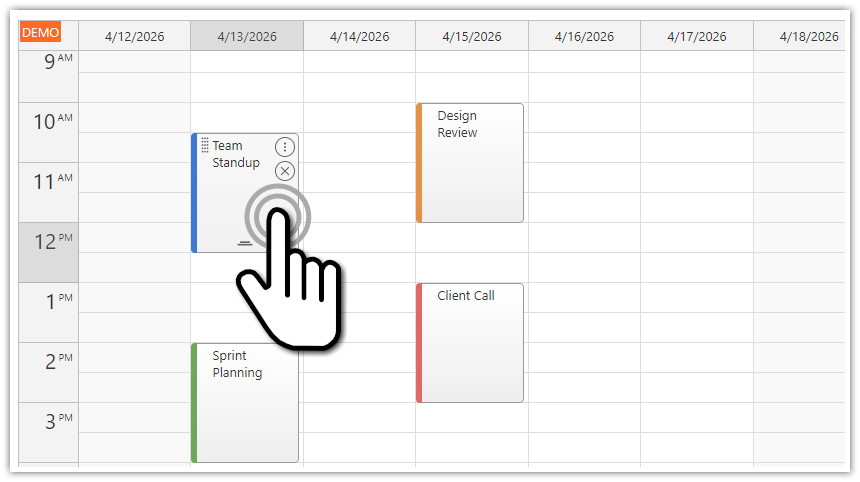
Built-in touch interactions in the Calendar:
Tap on an event triggers the same click handling as a desktop click.
Tap-and-hold on an event starts a drag-and-drop move, opens a context menu, or selects the event — the behavior is configurable.
Tap-and-hold on an empty slot starts a time-range selection for a new event, or opens a cell-level context menu.
Active areas as permanent touch controls. The active-area mechanism from the Customization section doubles as the touch-native UX layer. Drag handles, context-menu triggers, and inline action buttons can stay visible on touch devices, so users don't depend on hover to discover controls.
The Calendar runs in responsive web applications on iOS and Android in standard mobile browsers. On desktop, it supports Chrome, Safari, Firefox, and Edge (see browser compatibility for the current support matrix).
See the touch-devices documentation for the full gesture and configuration set.
Localization and RTL
Locale-driven formatting for major languages, with right-to-left support and custom-locale registration.
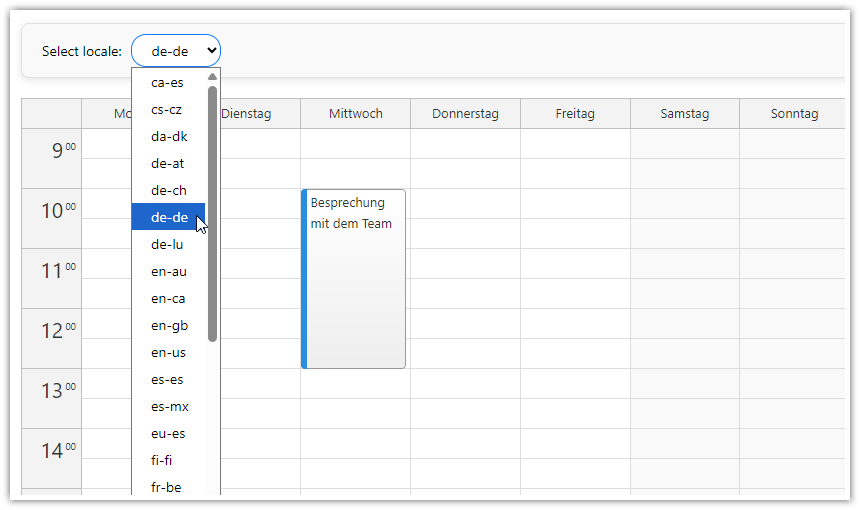
The locale property switches all of the following at once:
First day of week
Month and day names
12-hour or 24-hour time formatting
Date and time format patterns
Right-to-left layout direction
The Calendar ships with built-in locales for major languages (pass "en-us", "de-de", "fr-fr", or any other supported tag to apply the standard formatting). Applications can register custom locales or override individual fields when the bundled set isn't enough.
See the localization documentation for the locale system and the supported customization points.
Themes and Visual Styling
Built-in themes plus a visual Theme Designer with CSS-variable output for cross-component reuse.
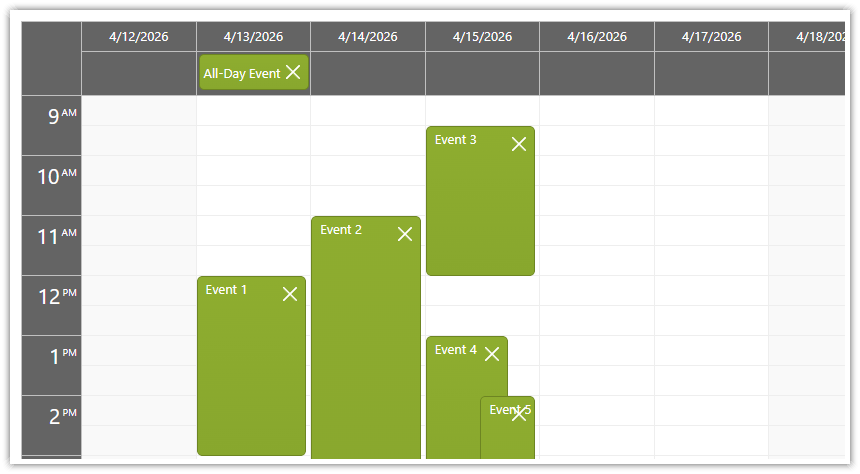
The Calendar ships with built-in themes (White, Blue, Green, and Transparent) applied through a single property. Each theme is a standard CSS file with no JavaScript binding, so it works across plain JavaScript, Angular, React, and Vue projects unchanged.
Custom themes are authored through the Theme Designer. It’s a visual editor that lets you change colors, borders, fonts, and spacing in a live preview, then export the result as a downloadable CSS file. Designed themes are captured as --dp-* CSS variables and can be hand-edited afterward in any text editor. The Theme Designer covers the Scheduler, Monthly Calendar, Gantt, Kanban, and Navigator components, so a single design language travels across every DayPilot surface in the application.
Export: Images, PDF, Excel
The schedule can leave the screen: as a spreadsheet, a vector, or a printout.
The Calendar's unified exportAs() method covers the main output formats:
SVG: vector output that stays sharp at any zoom or print size; useful for reports, embedded documentation, and large-format printing.
PNG and JPEG: raster snapshots with configurable scale and quality.
Excel (XLSX): shipped in the 2026 release line. The spreadsheet includes the events visible in the current view, the all-day row, and Resources view with its hierarchical column headers; per-event colors and fonts are customizable during export. The natural hand-off when a week's shift schedule needs to reach payroll or operations as a file.
The export object can be downloaded as a file, turned into an in-memory blob or data URI, placed into the page as an element, or sent straight to the browser print dialog. It can cover either the visible viewport or the entire schedule.
See also PDF export is a small composition rather than a built-in format: the PDF export tutorial shows the pattern — export a JPEG snapshot, then embed it with jsPDF at a configurable page size and orientation.
See the Excel export demo for the spreadsheet round trip, and the SVG export demo for the vector format.
Time Scale: Minutes to Weeks
One time axis, from minute precision to week-sized cells.
The vertical time axis is a scale, not a fixed hour grid. Time slots can be as fine as one minute for appointment-grade precision, and the scale property switches the axis to hour, day, or week units. The same component that renders a surgeon's 15-minute booking grid also renders a month down the page, one cell per day.
The larger scales unlock layouts beyond day-and-week scheduling. With day-sized cells in Resources view, each column becomes a vertical timeline for one resource. With months as columns, the Calendar becomes a yearly calendar (one year on a single screen, days running down each month).
See the yearly calendar tutorial for the months-as-columns layout, and the scale documentation for the supported units and live demos.
Overnight and Night-Shift Scheduling
A day can run from 18:00 to 06:00 - it's two properties.
The Calendar's day doesn't have to run from midnight to midnight. The dayBeginsHour and dayEndsHour properties define the visible window, and an overnight range is fully supported. A column can start at 18:00 and end at 6:00 the next morning, with events rendering straight across the midnight seam.
This is the layout for operations that work over the midnight: night-shift schedules in hospitals, plants, and terminals, broadcast-style timelines such as TV guides.
See the overnight scheduling documentation for the configuration and a live demo.
Data Loading and Integration
Bulk loading, incremental updates, and JSON loading scoped to the visible date range.
Three patterns for getting events into the Calendar:
Bulk loading: assign an array of events and update.
Incremental changes: add, update, or remove individual events as they are created in the UI or pushed in from another part of the application.
Remote JSON:
events.load(url)automatically appends the current visible range as query parameters, so the server returns only the events the user is looking at. As users navigate to a new week or date range, the calendar refetches against the new window without reloading the rest of the page.
Changes flow back out the same way. Every UI action (creating, moving, resizing, or editing an event) fires a handler carrying the changed data, so persisting a change is a single call to your API inside that handler. The server stays the source of truth; the calendar handles the rendering lifecycle. REST and GraphQL endpoints fit directly: no DayPilot server adapter or backend wrapper is required.
See the event loading documentation for the full lifecycle and async patterns.
Stable API and Regular Release Cycle
Bi-weekly release cadence with versioned change notes and stable APIs.
DayPilot Pro releases are scheduled in regular two-week intervals. We aim for backwards compatibility so upgrading to the latest version can be easy. API-affecting changes are called out explicitly in the release list, so the upgrade impact of any version is visible from the changelog without reading the per-release detail. Security defaults are conservative: event text and headers render as safe text, with raw HTML opt-in per surface where the application wants it.
See the release history for the full version list and per-release notes.